
NotesnookHELP
Organize notes with colors
Colors are a simple and quick way to organize your notes.
Assign color to a note
- Right click on a note
- Click on
Assign colors - Assign a color to the note.
- You can click on the color again to remove note from that color
- Press the
 button
 - Assign a color to a note from the color strip.
- You can press on the color again to remove note from the color
After you assign a color to a note, the note will adapt to that color.

Color Shortcuts
By default, all created colors are displayed in the side menu.
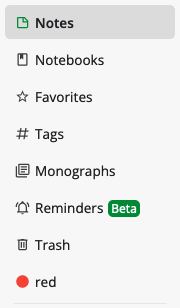
Hiding Shortcuts
Shortcuts can be hidden on mobile and desktop/web.
- Right click on the side menu.
- Select the color you wish to hide.
- Hold down on a color in the menu. A pop-up menu will appear.
- Select
Reorder. - Select the minus (
-) button for each color you wish to hide.
Bringing Back Hidden Shortcuts
- Right click on the side menu.
- Select the color you wish to unhide.
- Hold down on an item in the menu. A pop-up menu will appear.
- Select
Reorder. - Select the plus (
+) button for each color you wish to unhide.
Renaming a color
Colors can be renamed to anything you want.
- Right click on a color in side menu
- Click on “Rename color”
- Edit the color and click “Save”
- Long press on a color in the side menu
- Edit the color name and tap “Save”